





How to Know If Your Gaming PC is Good: A Step-by-Step Guide
A gaming PC is good when its parts deliver the frame rate and image quality you want in the games you actually play. The right answer depends on your games, resolution, FPS goal, and monitor, not just a high-end part or model label. A bottleneck is the component that limits performance when the other parts could deliver more. You can judge your system by checking its exact hardware, comparing game requirements, testing actual performance, and identifying any upgrade needs. A popular graphics card can still be a poor fit if it misses your target settings or pairs badly with the rest of the system. Start with your own screen and the games you care about, then use specific evidence instead of a product name to judge performance. Write down your main games and monitor resolution before judging any component.
Key Takeaways
- Match your parts to the games and settings you want.
- Compare exact CPU and GPU models, not broad product families.
- Use requirements as a starting point, then test FPS.
- Check whether your monitor can show the frame rate you target.
- Look beyond the graphics card at RAM, storage, cooling, and power.
How to Know If Your Gaming PC Is Good
The fastest first check is to find the exact CPU, GPU, and installed RAM in Windows. Exact models give you a useful comparison, while broad labels can hide large performance differences. A beginner can tell whether a system fits by matching those models to the games and display they want.
Compare exact component models with your games and display. Broad labels like “Core i7” or “RTX” are not enough.
Find the CPU, GPU, and RAM in Windows
Use this four-step Windows check to collect the hardware details that shape gaming performance:
- Press Ctrl+Shift+Esc to open Task Manager.
- Select the Performance tab.
- Note the CPU’s full model name.
- Note the GPU’s full model name and the Memory amount.
Windows Settings under System also shows the processor and installed RAM. Record the complete names, such as a specific Intel Core model or GeForce RTX card. “Core i7” describes a broad family, not the exact processor inside your PC. The same is true of an RTX label without its model number.
Use online checkers as a first estimate
An online PC checker can compare your CPU, GPU, and RAM with a game’s requirements. Some tools also estimate compatibility or FPS, which can help you screen a setup before testing it yourself.
Those estimates are not guarantees. Settings, game updates, graphics drivers, and other system factors can change the result. A checker may also assume a particular resolution or quality preset, so read its conditions before relying on a score. Save the full model names so comparisons use the actual parts, not a broad product family.
Do Your Parts Meet the Games’ Requirements?
Minimum requirements indicate a starting point for launching a game, not a promise of smooth play at your preferred settings. Recommended and high-quality tiers give you a better sense of the parts a game expects for richer visuals. Minimum does not mean high FPS, high settings, or a match for every screen.
Fortnite’s requirements show how much the target experience can change. Its 2026 minimum configuration lists Windows 10 64-bit, an Intel Core i3-3225 at 3.3 GHz, 8 GB of RAM, and Intel HD 4000 or AMD Radeon Vega 8 graphics.
The recommended tier raises memory and graphics needs, while the Epic preset names a much faster GPU. Read the operating system, processor, RAM, graphics, and storage together rather than treating one part as the whole requirement.
| Fortnite requirement tier | CPU | GPU | RAM | Storage/OS |
|---|---|---|---|---|
| Minimum | Intel Core i3-3225 at 3.3 GHz | Intel HD 4000 or AMD Radeon Vega 8 | 8 GB | Windows 10 64-bit; storage not specified |
| Recommended | Intel Core i5-7300U at 3.5 GHz or Ryzen 3 3300U | GTX 960 or R9 280 | 16 GB or more | Windows 10 or 11 64-bit; NVMe SSD |
| Epic preset | Core i7-8700 or Ryzen 7 3700X | RTX 3070 or RX 6700 XT; at least 8 GB video memory | 16 GB or more | Windows 10 or 11 64-bit; NVMe SSD |
Fortnite’s minimum tier does not specify storage, while its recommended and Epic configurations specify an NVMe SSD. The Epic tier calls for at least 8 GB of video memory, a separate measure from system RAM. Match each requirement to your actual hardware and intended settings before deciding whether the system is a fit.
Fortnite still offers Performance mode and DirectX 12. Update 40.10 removed its DirectX 11 option in April 2026. Native DLSS 4 arrived in spring 2026, but Fortnite does not offer frame generation. Compare the requirement tier to your own target settings, rather than stopping at the word “minimum.”
What Do Your GPU and CPU Say About Gaming Performance?
The GPU matters most when resolution and visual effects raise the graphics workload, while the CPU can become the limit when chasing very high FPS. The balance shifts with the game and its settings. Judge the CPU and GPU as a pair, against the performance you actually want.

The GPU sets much of the visual workload
A graphics card renders the image, so higher resolutions and demanding effects usually ask more from the GPU. Fortnite’s listed 1440p Epic-quality configuration calls for an RTX 5070 or RX 9070 XT and 32 GB of RAM. Its 4K or maximum-ray-tracing configuration lists an RTX 5070 Ti, RTX 5080, or RX 9070 XT.
Those examples do not mean every game scales the same way. A graphics card that handles one game well may struggle with another game’s effects or a higher resolution. A CPU can also hold back a strong GPU, especially when the game demands frequent calculations or very high frame rates.
The CPU matters more at very high frame rates
Fortnite’s 1080p, 60-144 Hz casual-play configuration lists a recent six-core processor, an RTX 5060 or RX 9060 XT, and 16 GB of RAM. Its 1080p competitive configuration for 240 Hz or higher lists a Ryzen X3D or fast recent six-core processor, an RX 9060 XT through RTX 5070, and 16-32 GB of RAM.
At very high frame rates in Performance mode, the processor can become the limiting component. In DirectX 12 with Lumen and ray tracing, the graphics card carries more of the workload. These are different demands, even on the same PC.
Do not choose a part by tier alone. Consider its model alongside the other components and the settings you plan to use. A balanced system may deliver a better experience than one costly part paired with hardware that cannot keep up. Compare both processor and graphics-card models before deciding which upgrade could improve the frame rate you care about.
How Can You Test Real-World FPS?
A useful performance test holds the game, resolution, settings, and test conditions steady. Repeatable results help you see whether a graphics card meets your target instead of relying on a rating alone. Record the resolution, preset, and FPS each time you test.
Run a repeatable benchmark
Run the same benchmark more than once, with the same game version and settings. Write down the result, the resolution, and the quality preset. If the FPS changes sharply between runs, check for background tasks or changing test conditions before drawing conclusions.
3DMark includes Time Spy, Time Spy Extreme, Steel Nomad, Fire Strike, GPU stress tests, a CPU Profile test, and a Storage Benchmark. It also offers game-performance estimates. You can save results offline or privately, which makes it easier to keep a record without sharing a public score.
Compare like-for-like game results
A 2026 Fortnite comparison covers more than 60 NVIDIA GeForce, AMD Radeon, and Intel Arc graphics cards. It includes average FPS and 1% low results, with options to select resolution and processor. A rate-my-PC-for-gaming score can screen a setup, but it cannot replace a test using the same game and settings.
The figures below come from different tests. The first three use the same 1080p settings, while the last two use 1440p Epic quality with ray tracing.
| Graphics card | Resolution and settings | Recorded FPS |
|---|---|---|
| RTX 3060 | 1080p, High, Lumen High, DLSS/TSR Quality | 78.8 FPS |
| RTX 4060 | 1080p, High, Lumen High, DLSS/TSR Quality | 94.9 FPS |
| RTX 4070 | 1080p, High, Lumen High, DLSS/TSR Quality | 137.8 FPS |
| RTX 5060 Ti 16 GB | 1440p, Epic quality, ray tracing | 78 FPS |
| RX 9070 XT | 1440p, Epic quality, ray tracing | 120 FPS |
The 1080p results were recorded in April 2024, while the 1440p results are from 2026. Processors and settings differ across the cited tests, so the numbers are not a direct ranking across every row. A rate-my-PC-performance tool can help screen hardware, but compare like-for-like tests. Compare graphics cards only within the same test source when their processors or settings differ.
Does Your PC Match Your Monitor and FPS Goal?
A PC only makes sense for your setup if it can deliver the image quality and frame rate your monitor can display. Your screen sets the target: resolution describes image detail, and refresh rate describes how often the display updates. Choose a PC for the resolution and refresh rate you actually use.
Match resolution to graphics demand
Common resolutions include 1080p, 1440p, and 4K. A 1440p display shows more pixels than a 1080p display, and 4K shows more still. Higher resolution can make a game look sharper, but it also raises the graphics workload. That makes a 1080p target different from a 4K target, even in the same game.
A 1080p 60 Hz monitor asks for a different experience than a 1440p 144 Hz display. The second screen combines a higher resolution with a higher refresh rate, so matching it can demand more from the system. Buying for frames your screen cannot show may not improve the experience you notice.
Set an FPS target your display can show
Fortnite’s 2026 guide suggests 60 FPS for casual play, 144 FPS or more for comfortable building, and 240 FPS or more for competitive play. The monitor must keep up for those frame rates to show as intended. Common monitor refresh rates include 60 Hz, 75 Hz, and 144 Hz.
A 144 Hz screen can update up to 144 times per second, while a 60 Hz screen updates up to 60 times. FPS and refresh rate are not identical, but both matter when you judge smoothness. Write down your monitor’s resolution and refresh rate before spending more for higher performance.
Are RAM, Storage, and Cooling Good Enough?
A system can have a capable graphics card and still feel slow if memory, storage, or cooling is poorly matched. These supporting parts matter for loading, multitasking, and steady performance. Fortnite describes 16 GB of RAM as enough to play on its own; 32 GB helps when you stream, record, or keep many apps open.
Check RAM capacity and multitasking needs
For gaming alone, 16 GB is a commonly used modern baseline, while 32 GB suits heavier multitasking. So, is 16GB RAM ok for Fortnite? Yes, for the game on its own. Extra memory is useful if you stream, record, or leave many applications open while playing.
Check the memory type as well as its capacity. DDR4 and DDR5 are current RAM types, while DDR3 is older. The motherboard and processor determine which type your system can use, so the number of gigabytes alone does not tell the whole story.
Check storage type and free space
Many gaming prebuilts specify at least 512 GB of PCIe 3.0 or PCIe 4.0 NVMe storage. An NVMe SSD can improve game loading, while a slow HDD can make loading feel sluggish. Capacity matters too: a drive with little usable space may leave you constantly removing games.
Check the CPU cooler and airflow
Use this four-part check to review memory, drive, and cooling details:
- RAM capacity and type, such as DDR4 or DDR5.
- SSD type and usable capacity, including the NVMe model if listed.
- Cooler model and its fit for the CPU.
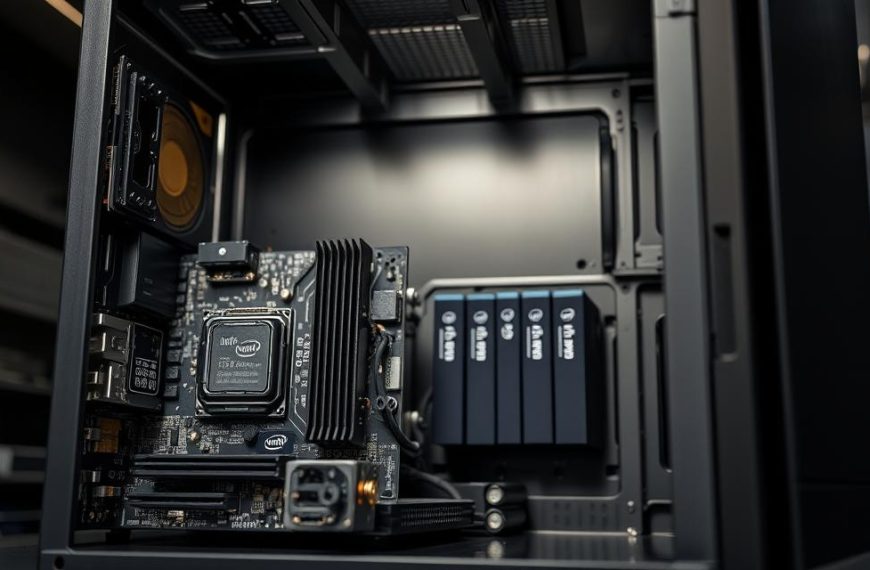
- Case airflow around the cooler and other components.
A budget CPU rated around 65W or 105W TDP does not automatically need a liquid cooler. An adequate air cooler can work for those CPUs. Cooler fit and case airflow matter more than whether a listing uses the phrase “liquid cooler.” Check the exact drive capacity and cooler model, not just the words “SSD” or “liquid cooled.”
Are the Power Supply, Case, and Other Parts Reliable?
A graphics-card name does not tell you whether the power supply, motherboard, or case is well chosen. Check the less visible parts by their exact models and features, not just a badge on the listing. An 80+ Bronze label alone does not prove that a PSU is well built.
Inspect the PSU model and motherboard features
A power supply’s exact brand and model matter because the efficiency rating does not describe every aspect of build quality. An 80+ Bronze unit from a known manufacturer is a general baseline. EVGA, Seasonic, Thermaltake, Corsair, MSI, be quiet!, Cooler Master, and DeepCool are examples to research, not guarantees of quality.
Check the motherboard’s CPU compatibility before buying or upgrading. Look for features that suit your needs, such as built-in Wi-Fi, a PCIe 4.0 M.2 slot, and spare RAM slots. A listing that leaves these details out makes future changes harder to plan.
Look for a case that can move air
A front mesh panel or clear air intake can help a case move air through the system. RGB lighting may change the look, but it does not make up for blocked intake or poor exhaust. Check that fans have a clear path to pull cool air in and move warm air out.
Coil whine is an electronic buzzing or ringing sound that some components can make. High refresh rates can make it more noticeable, but the sound alone does not prove a fault. Record the PSU’s exact model and confirm that the case has a clear path for air intake and exhaust.
How Do You Spot a Bottleneck and Improve Performance?
High GPU utilization in a demanding game is not automatically a warning sign if the system remains stable and meets your target. Look at the whole result, including FPS, stutters, and temperatures. Do not replace a component just because the GPU reaches 100% use.
Check what is limiting the game
Follow these four checks when a game performs worse than expected:
- Note the FPS and stutters in the problem game.
- Check CPU and GPU utilization and temperatures.
- Update the graphics driver and check Windows Game Mode or HAGS.
- Lower demanding settings, such as shadows, before replacing a part.
HAGS means Hardware-Accelerated GPU Scheduling. A demanding 3D game can use 100% of the GPU without indicating a fault. Judge that load against the FPS you get, whether the game stays stable, and the temperatures you observe.
Make safe, reversible changes first
Close unnecessary background apps to reduce competing system load. Check that your graphics driver is current, then test one in-game change at a time. Lowering shadows or motion blur can help you see whether a demanding setting is affecting the experience. Keep the original setting noted so you can restore it.
FPS that stays below your target may point to a hardware limit, while sudden stutters can also follow software or background activity. Test changes in the same game and location when possible. Change one setting at a time so you can tell which adjustment actually helped.
How Should You Judge a Prebuilt Before Buying?
Before buying, read the full specification sheet instead of relying on a processor tier or RGB-heavy product name. The exact parts tell you far more than “Intel Core i7” or “Ryzen 7.” Judge a prebuilt by its complete specifications and tested performance against your own games and display.
A processor tier or colorful case cannot tell you what performance to expect. Compare the exact parts and the results they deliver in your target game.

Check the full CPU model, GPU, RAM type and capacity, SSD, PSU, motherboard features, and cooling. A familiar GPU label can appear alongside different processors, memory types, or storage sizes, so compare the whole configuration.
| PC | Listed price | CPU and GPU | RAM and storage | Other specified details |
|---|---|---|---|---|
| Skytech Azure 3 | $1,399.99 | Intel Core i5-14400F; RTX 5060 Ti, 8 GB GDDR7 | 24 GB DDR5-6000; 1 TB NVMe | 650 W Gold; graphics-card brand may vary |
| KOTIN Ryzen 7 8700F | $1,399.99 | Ryzen 7 8700F; RTX 5060 Ti, 8 GB GDDR7 | 16 GB DDR5; 1 TB Gen4 NVMe | 650 W 80 Plus Gold; Wi-Fi 7; four DDR5 slots; three M.2 slots |
| Skytech Archangel 5 | $1,249.99 | Intel Core i5-14400F; RTX 5060, 8 GB GDDR7 | 16 GB DDR5-6000; 1 TB NVMe | 750 W Gold |
| KOTIN Ryzen 7 9700X | $1,499.99 | Ryzen 7 9700X; RTX 5060 Ti, 8 GB GDDR7 | 16 GB DDR5; storage not specified | Listing FAQ specifies 360 mm liquid cooler |
| CyberPowerPC Gamer Master GMAI6100A2 | $1,429.99 | Ryzen 5 8400F; RTX 5060 Ti, 8 GB GDDR7 | 16 GB DDR5; 1 TB PCIe 4.0 SSD | B850; Wi-Fi 6; Bluetooth 5.3; DDR5 speed and PSU wattage not stated |
The Skytech Azure 3 listing gives its price and specifications, but says the graphics-card brand may vary. The CyberPowerPC listing specifies Wi-Fi 6 and Bluetooth 5.3, but does not state DDR5 speed or PSU wattage. Those missing details affect how clearly you can compare the configurations.
Other examples show why overlapping labels do not make systems equal. The MSI Codex R2 lists an Intel Core i5-14400F, RTX 4060 with 8 GB of VRAM, 16 GB DDR5, a 1 TB M.2 NVMe SSD, and a 650 W Gold PSU. The NOVATECH Phantom 2.0 lists an Intel Xeon i7, RTX 3050 with 6 GB of VRAM, 16 GB DDR4-2666, a 512 GB M.2 NVMe SSD, and a 550 W Bronze PSU.
The CyberPowerPC Gamer Xtreme lists an Intel Core i5-13400F, RTX 4060 with 8 GB of VRAM, 16 GB DDR5, a 1 TB PCIe Gen4 SSD, and a 600 W PSU. These three examples have 16 GB of RAM, yet differ in GPU, memory type, and drive capacity. A matching RAM number does not make the whole parts list equivalent.
A $500 PC can involve compromises in modern games, resolution, or settings. Green Beast Gaming has collections of prebuilt gaming PCs under $600 and under $2,000, but a collection label does not establish that a specific system suits your needs. For “What is the best gaming PC under $600?” compare exact GPU, RAM, storage, and real game test results. Verify the exact part models and any variable or unspecified components before paying.
Conclusion
A good gaming PC is the one that consistently meets your own game and display goals. A high-end label alone cannot tell you whether a system delivers the performance you want at your chosen resolution and settings.
Write down the CPU, GPU, RAM, storage, and monitor details, then compare them against one game and one settings target. Use the test result that matches your display goal, not a score from unrelated hardware or settings. Your most-played game is the clearest place to start. Use your most-played game as the first test before deciding whether an upgrade is worth it.
FAQ
Is 32 GB RAM overkill for gaming?
For gaming alone, 16 GB can be enough in many cases, so 32 GB may be more than you need. It becomes useful when you stream, record gameplay, or keep many applications open while playing. Check the memory needs of your games and the other tasks you run at the same time. Capacity matters most when your system runs short during use.
Is a $2000 PC good for gaming?
A $2,000 PC can be good for gaming if its exact GPU, CPU, and monitor target justify the cost. Check the full parts list, then compare tested results at the resolution and settings you plan to use. A high price does not guarantee balanced hardware, suitable cooling, or a meaningful FPS gain on your current display.
Is a $1000 gaming PC worth it?
A $1,000 gaming PC can be worthwhile when its GPU and complete parts list fit your games and display. Compare the exact CPU and graphics-card models, RAM type and capacity, storage, and PSU. Then look for same-game benchmarks at your resolution and settings. A broad processor tier or a familiar GPU name alone cannot show whether the PC is a good match.
Is a $500 PC good for gaming?
A $500 PC can run some games, but expect compromises in newer games, resolution, or visual settings. The exact GPU matters more than a general product label, and the rest of the system still affects results. Check real game benchmarks at the settings you want before buying. A low price does not show whether a particular configuration will meet your FPS goal.
Is $1500 a lot for a PC?
$1,500 is a substantial PC budget, but the value depends on the full component list and tested performance. Compare the exact CPU, GPU, RAM, storage, power supply, and cooling with your gaming needs. A system may be worth that amount if it fits your monitor goal and performs well in your games. Price alone cannot establish its value.
Can a 500$ PC run Fortnite?
Yes, a $500 PC can run Fortnite if its components meet the game’s requirements, but performance depends on the actual system and settings. Fortnite’s listed minimum includes an Intel Core i3-3225 at 3.3 GHz, 8 GB RAM, and Intel HD 4000 or AMD Radeon Vega 8 graphics. Minimum hardware does not promise high FPS or high visual quality.
Is 16GB RAM ok for Fortnite?
Yes, Fortnite describes 16 GB of RAM as enough to play the game on its own. You may benefit from 32 GB if you stream, record gameplay, or keep many apps open while playing. The game’s requirements can change over time, so compare your PC’s full hardware with the current target settings rather than judging by RAM alone.
Is Fortnite really 140 GB?
Fortnite’s installation size can change with game updates and the content you select. A 140 GB figure may not match every installation or remain current. Check the size shown in the Epic Games launcher before reserving space on your SSD. Leave room for updates and other games, since a nearly full drive can be inconvenient to manage.

 By
By
 By
By